TL;DR – It’s about time Windows had its own take on apt-get.
- Use the new Win10 PackageManagement (OneGet) powershell commands to install your favorite apps from the Chocolatey repo (and others). Chocolatey has packages to all the common apps you use like Chrome, WinRAR, 1Password, DropBox, Visual Studio etc etc.
- For Office, use the powershell commands from the Office Scripts project to script an Office, Project and Visio install into the same script.
- Store the script in OneDrive so that when you setup another Win 10 PC, you can quickly sync the script and run it.
- If you’re not yet on Windows 10, OneGet is (essentially) the same thing for older Windows OSs available in the Windows Management Framework 5.0
Now the ramble: I’m self diagnosed with a multiple personal-computer disorder:
I spend a lot of time with a lot of different PCs. As a 21st century technologist, it is par for the course. One of the challenges that comes from these poor life choices is the inevitable timesuck of reimaging and re-setting up my various PCs.
In an ideal world, I would be able to move from computer to computer with all my apps following me. In an ideal world, I could leave a rusty old dell laptop shutdown for a few months and be able to turn it on again and quickly pick up from where I left off… without a forced restart greeting me with this bald faced lie optimistic take on the setup experience:
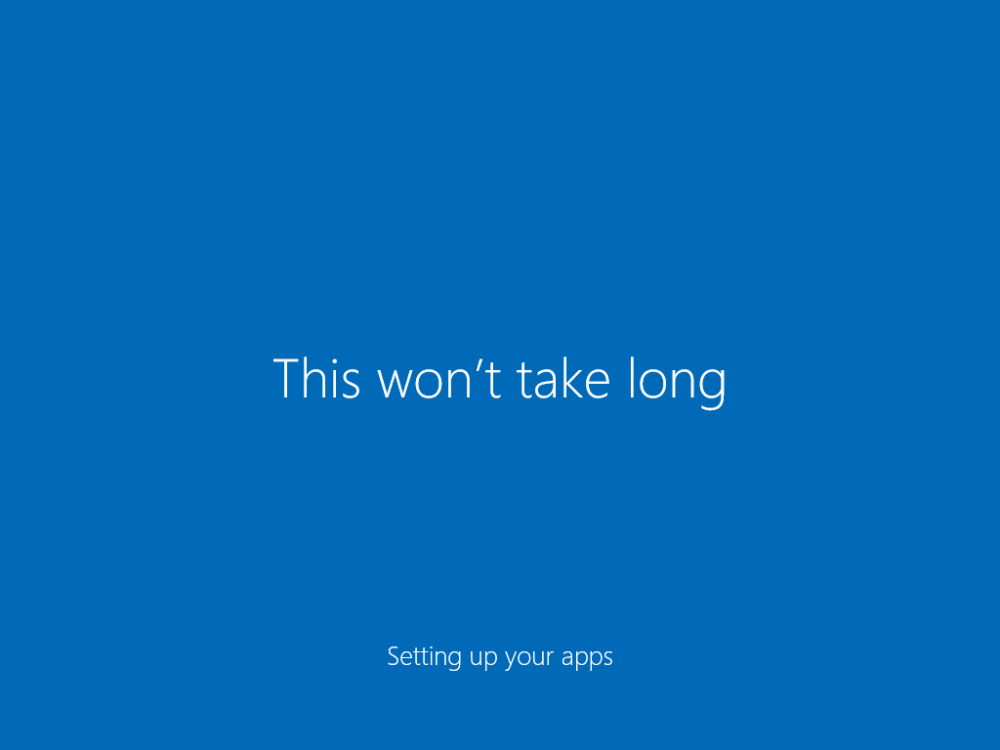
There are plenty of frustrating things like this that are done for Very Good Reasons and while we wait for the technology to get better, there are things we can do to claw back some time.
(One)Get thee to the repository!
Introducing PackageManagement, the coolest new PowerShell command you haven’t heard of. PackageManagement (as it is called in Windows 10, but it goes by OneGet on GitHub). OneGet is a package-management-manager, essentially a common interface for interacting with multiple different package managers and repositories.
Note: before you begin, note that installing chocolatey packages requires you to change ExecutionPolicy:
Set-ExecutionPolicy Unrestricted
Once that is done, run your powershell script that will look something like this:
#installing software
import-module PackageManagement
#include the chocolatey package manager as a provider
get-packageprovider -name chocolatey
#install the software we want
install-package 1password
install-package sysinternals
install-package vlc
install-package googlechrome
install-package skype
install-package dropbox
install-package winrar
install-package github
install-package visualstudiocode
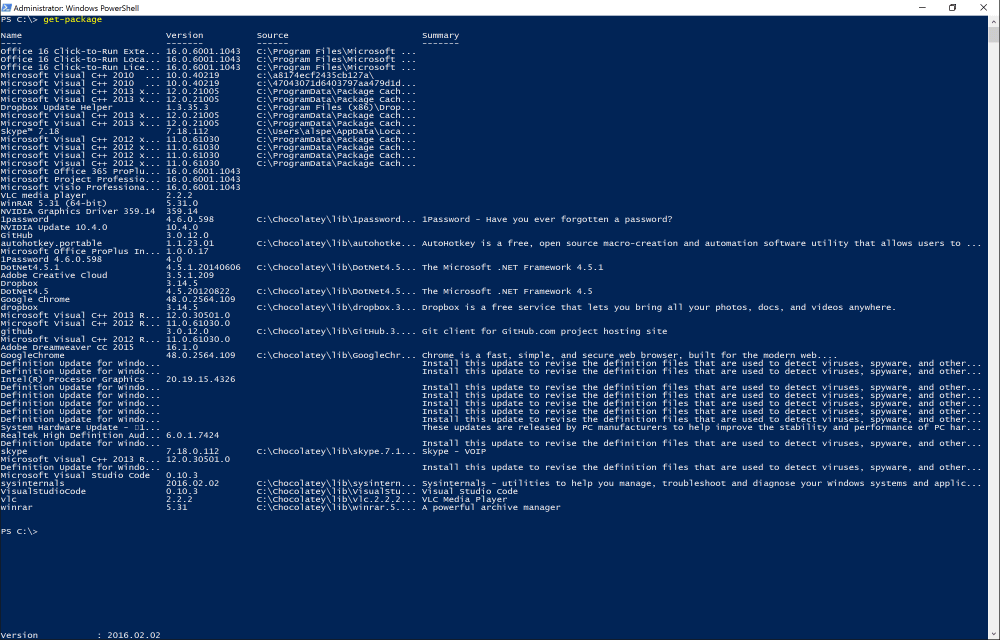
Once you are done, your apps are installed and running get-package will list out all the packages installed on your PC. This is a barebones example – there will be a couple of prompts (just hit Yes) as PowerShell tries to warn you that you are installing software… I’m sure you PS gurus out there can automate an even smoother install approach. But even with hitting Y a couple of times in the PowerShell console, this approach is MUCH faster than downloading software from 9 different sites and all those dreaded InstallShield prompts (sidebar – it is 2015, why does InstallShield still exist?)
What about Office?
For Office, I use the great scripts on the Office Scripts GitHub repository. These allow you to pull down the latest ClickToRun builds direct from the CDN as well as set preferences and generate config.xml files required for the setup. Of course, this does require an Office 365 subscription to use Office, but anyone can pull the bits down from the CDN (although these scripts make it much easier).
Still some annoyances with Windows for power users
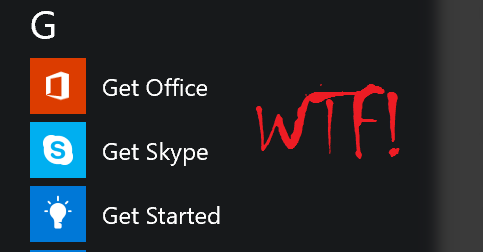
This is an amazing step forward for those of us that manage multiple personal PCs throughout the week. I do wish that PackageManagement (OneGet) allowed me to add/remove/manage some of the bizarre universal apps that get installed by default with Windows 10. The “Get Skype” and “Get Office” apps are nothing but adware and don’t serve any purpose for power users. In fact, they just add another step in my new PC workflow of stuff I need to uninstall. And don’t even get me started on that CandyCrush tile.
 Superstratum